Credit
A large portion of this article is adapted from ACM Hack's material.
Introduction
This part will introduce you to a high-level overview of Git, a software tool used to manage your coding projects. Basics concepts and the underlying structure of Git will be covered. More details on how to use Git will be given later.
What You'll Learn
- What is Git?
- Why use Version Control?
- The Idea Behind Git
- Basic Git Operations
- Status, Staging, Committing
- Branching and Merging
- Viewing Repository Status
- Undo Commands
- Using Git (Demo)
What is Git?
Say you are writing some code. You want to keep track of the progress you made so far, so you decide to
create separate files every time you add a chunk of code:
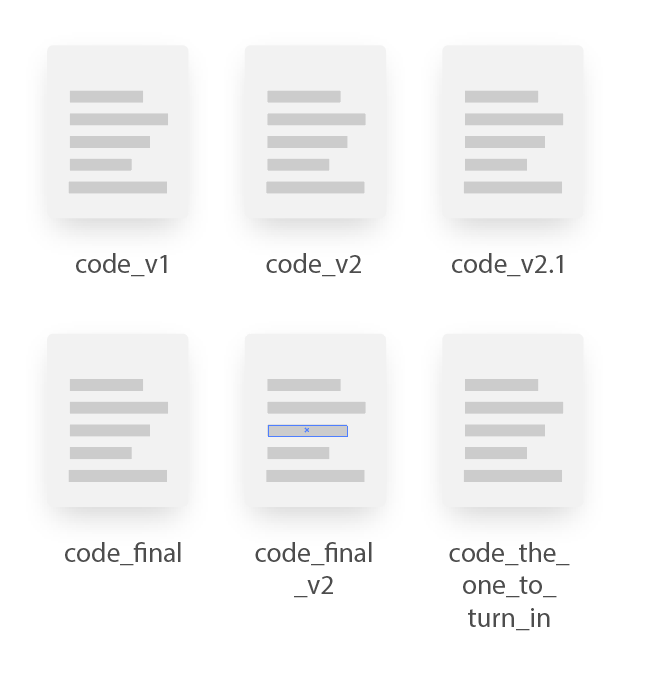
This works fine for small projects, but you can probably imagine how for
large scale projects it will just be a mess. This is where Git comes in.
Git is a type of software known as a version control system. It helps developers keep track
of updates and modifications to their programs in a systemized way.
Furthermore if you visit their official website, you will notice they brand themselves as the
distributed version control system. This means that when multiple developers are working on the same project,
each developer will have their own copy of the project. As the development progresses, each developer will intercommunicate with others and share their code.
This scheme may be a bit problematic, however. For example, if you want to know who has the latest version of a code, you will have to check in with all other developers to see who has it.
In such cases, it may be easier if there is a single place to store the code, which is guaranteed to have the latest code which everyone can access.
This is where GitHub comes in. Like its name, GitHub is an online hub where people
using Git can centrally store their code.
We will dive deeper into GitHub in a later part.
Why Use Version Control
Keeping A History of Your Code
One of the many nice things about version control is that it helps you keep track of how your code has changed. This is very useful, because it allows you to:
- Find out what change was made in a file
- This is useful for bug hunting
- Find out who wrote a section of code
- Find out when a change was made
- Revert unwanted changes
- Feel secure against accidentally deleting your work
- No more commenting out code just to "keep it around just in case"
Collaborate with Others Concurrently
Nowadays, we usually code in teams. Without version control, this becomes very difficult. If two people made changes, those changes would have to be manually combined. This would be an error prone disaster. Heaven forbid they modify the same file.
Idea Behind Git
Initially, the inner workings of Git will seem confusing. So to avoid trouble later, we will first go over how Git manages your code under the hood.
Git is best understood if we visualize multiple versions of your code to be on a single line:
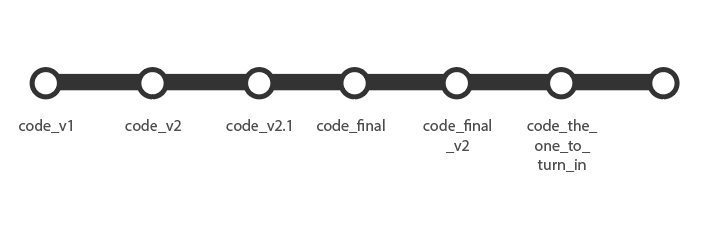
Left to right
The dots on the line are called commits, and can be thought as
checkpoints in your code. It is recommend you make commits before and after major changes to your code, so in case you mess up a code you can return to a previous checkpoint and undo your changes.
Everything you do in Git will be contained in your project folder, or your Git repository.
Another important concept in Git are branches. Say you have a feature you want to add to your code, but not sure at the moment if you want to actually implement it. Take a look at the following graph, for example:

At the moment, we are at version 2
Instead of continuing on with the current code, we can make a new branch at code_v2, called new-feature. This will "branch out" a clone of code_v2, which we can freely work on without worrying about messing up our original code. With this applied, our diagram will look like the following:
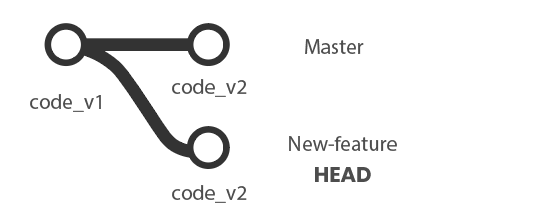
code_v2 is a clone of one another
Woah there! There are bunch of terms that suddenly popped up. We will explain them one by one
- By convention, the very first code you create is in a default branch called
master. That is why the original line is now labeled as master. new-featureis again, the name of our new branch.HEADis a term used to indicate the current branch we are working on. In this case, we want to work on implementing our new feature, so it points tonew-feature
We will see of these action in later sections. Stay tuned!
Add and Commit
So whatever branch you may be on, you wrote some code and ready to make a commit. But what exactly is a commit, and what does it do?
Usually a commit will be a 2 step process: add and commit.
In an add, you bundle together the files you have modified into a single package, called a tree object. The files you modified are stored in the tree object in a format called a blob. The add process is also known as the staging process.
In a commit, you record the tree object and other misc. information into an object called the (drumroll.....) commit object. This commit object will then be recorded onto the branch, and serve as a checkpoint in your code as we discussed earlier. In the diagram earlier, they are represented as the white dots.
Merge
Last but not least, we talk about merge. Merge is an important concept that you will encounter in various scenarios, so read carefully.
Say you wrote some code and made lots of commits to implement the new feature from earlier. The current diagram looks like this:
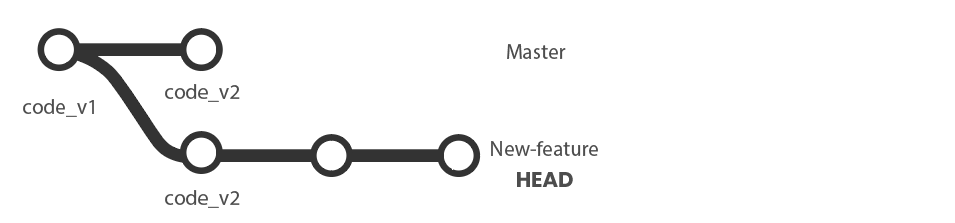
Each white dot represents a commit we made
When you perform a merge, Git will try to combine the two branches back into one. This is done by "replaying" the commits you made in the new-feature on the master branch. In other words, it looks at all the change you have made so far, and applies them one by one to master.
More often this not, this process often results in a merge conflict, where a change you made conflicts with another change, usually made by another developer working on the same project. Examples of scenarios where merge conflicts arise include:
- You try to update your code to apply changes another developer made, but the changes include deleting a large portion of a code you worked on
- Conversely, you want to send an update you made to another developer, but it overwrites some of the changes they made
There are simply way too many specific scenarios a merge conflict can happen, and equally many ways to resolve them. So instead of listing them all out here, we will discuss them as we progress in this tutorial. For now, we assume there was no conflict, or we were able to resolve any conflicts.
The resulting diagram will be like this:
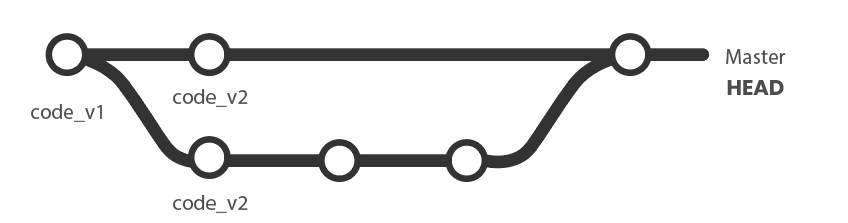
Now the master branch has all the changes we made in new-feature
Notice HEAD is pointing at master, as it is the only branch we have now.
The master branch now contains all of the changes you made in the new-feature branch.
Basic Git Operations
Now that we have the concepts, down, you finally learn how all of these operations are actually carried out.
These are some of the more common git commands. You do not need to memorize them now - instead, use them as a glossary to do later parts.
git status
This will show the differences between the HEAD commit (usually the latest one) and your current files. It also will list commands for basic operations you can do like staging (adding) files, committing them, or unstaging them. This is very useful because it allows you to rely less on memory for commands.
🚨git status will remind you of basic git commands🚨
git init
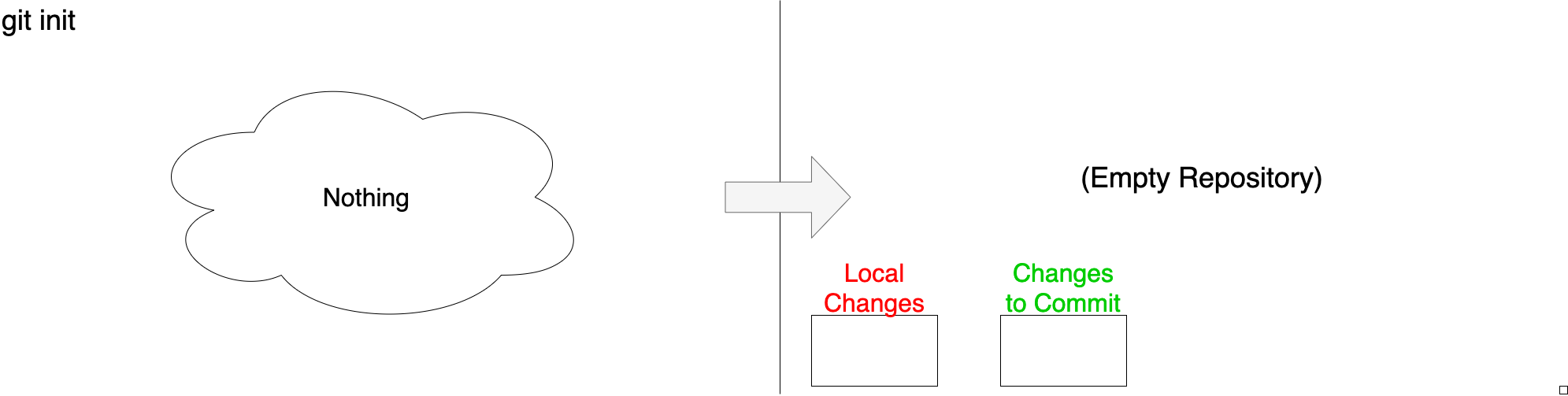
git init initializes a new repository.
git add
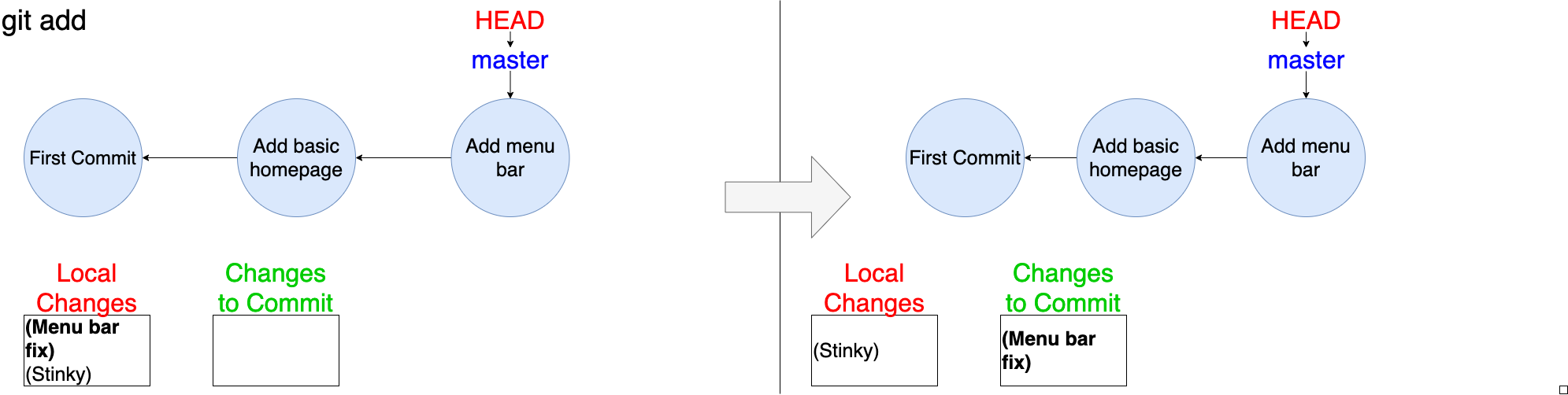
git add lets you select changes you intend to commit. It is very important to note that you add changes. This means that you can pick a specific change in a file and add only that part of the changed file.
Pro tip: Use git add -p to manually select exactly which changes you want to stage.
git commit
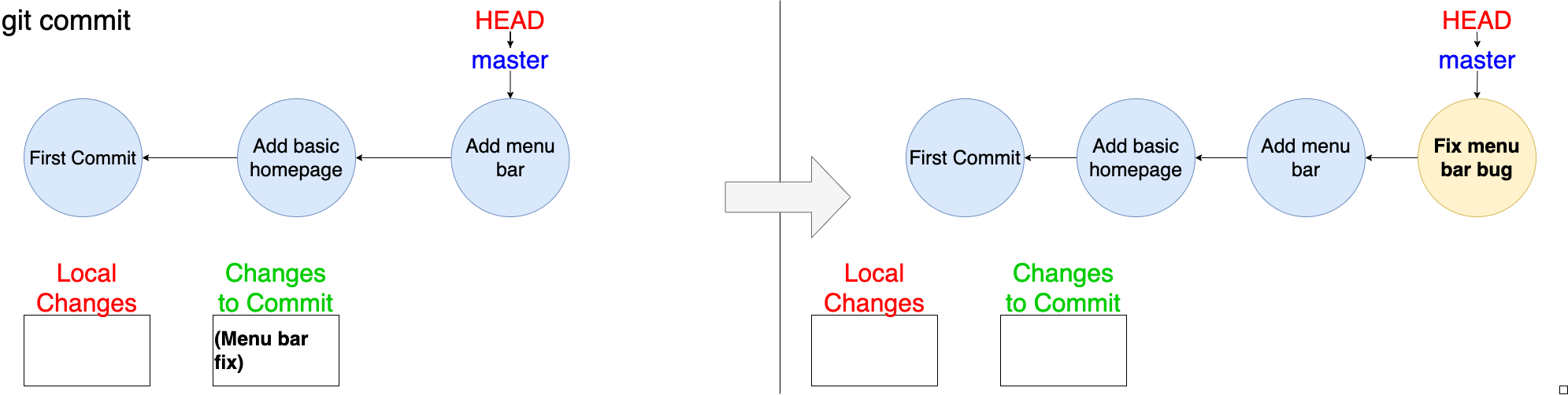
git commit takes the changes you added with git add, and adds them to your repository by packaging them in a commit.
Pro tip: Use git commit -a to add/stage all modified and deleted files, and then commit.
Branching and Merging
git branch <branch_name>
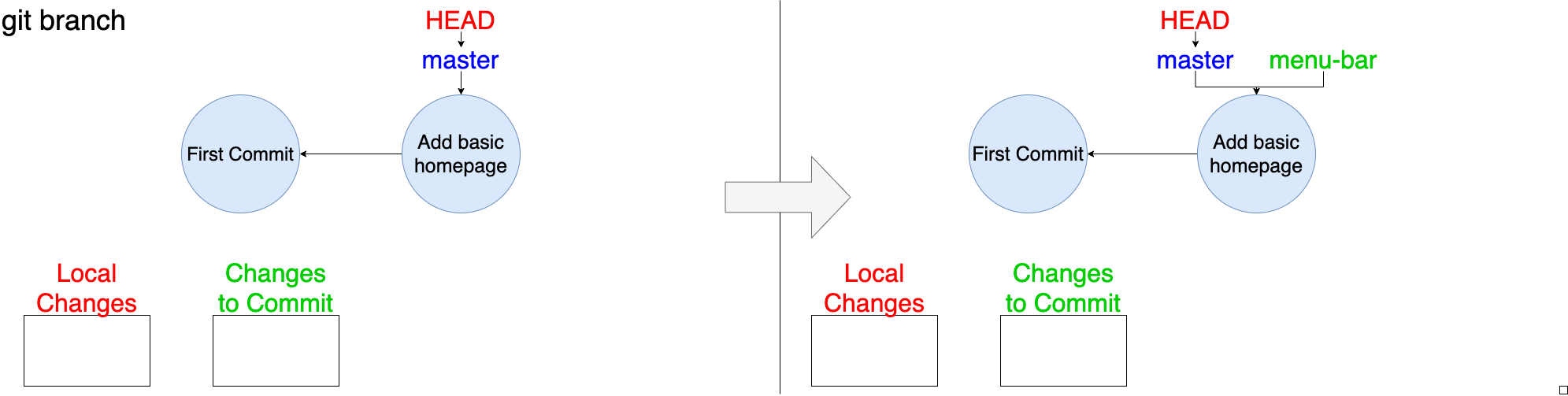
git branch <branch_name> creates a new branch that points to the commit indicated by HEAD (the "current branch").
git switch <branch_name>
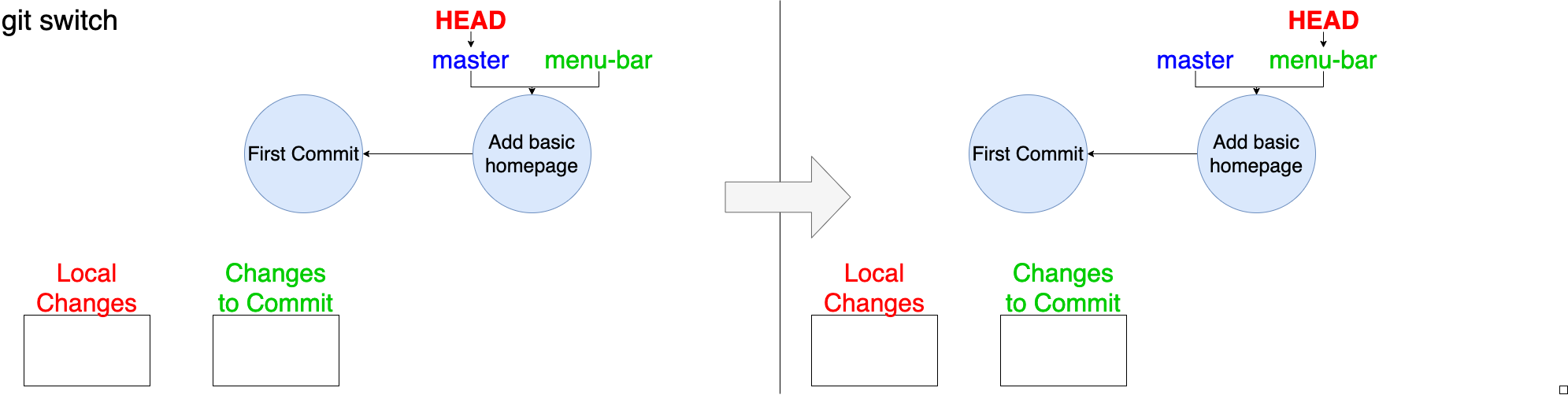
git switch <branch_name> switches HEAD, which represents branch or commit that you are "at" locally, to the branch you specify. This can be any branch. Your files will change to reflect your new branch.
This is the same as git checkout <branch_name>
git merge <revision>
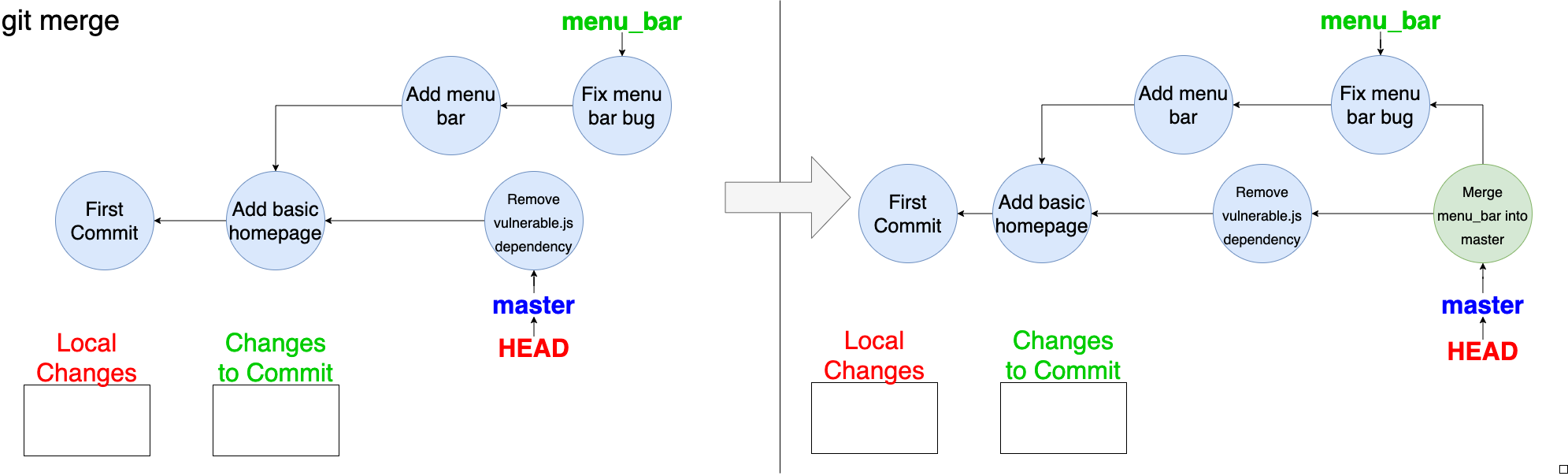
git merge <branch_name> (current branch is master) will combine the changes of <branch_name> and master.
git rebase
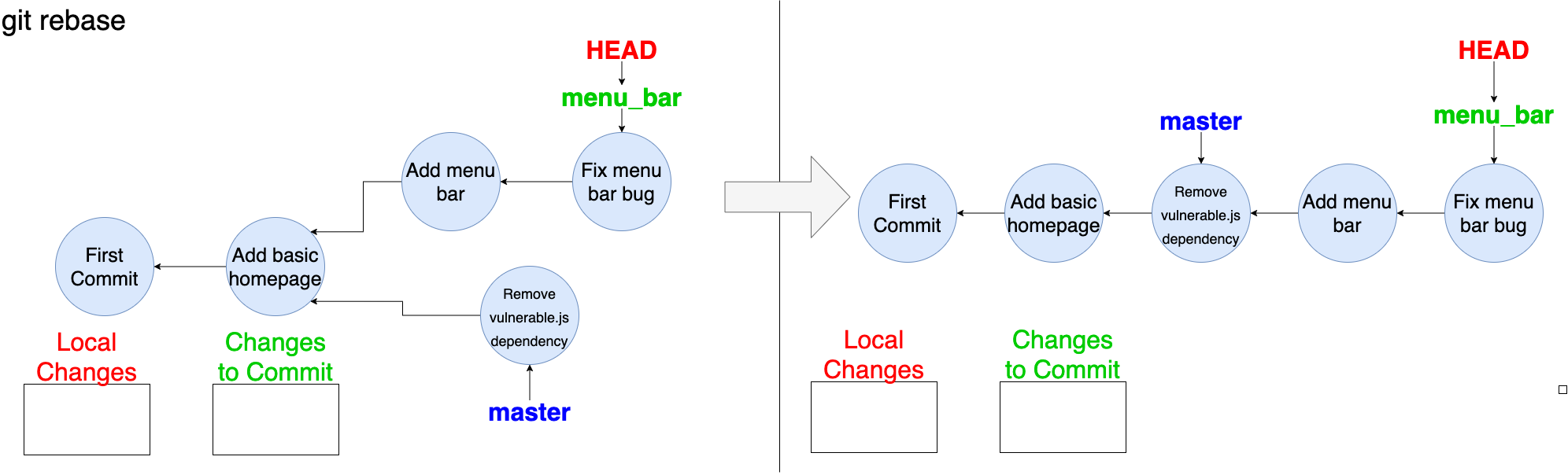
git rebase master will take all of the commits in your current branch and move them to the tip of master (like in the picture).
You might wonder, how is this different from merge? At a glace it appears to be doing the same thing. The key difference is the order in which the commits are merged.
In a merge, the two branches being merged may have commits made on both branches by different people. A merge will combine these commits in the chronological order they were committed. Sometimes this leads to an disorganized result. For example, say Alice made commits at 1, 3, 5, and 7pm, while Bob made commits at 2, 4, 6, and 8pm. A merge will result in a commit timeline where Alice makes a commit at 1pm, then Bob makes a commit at 2pm, then Alice, and so on. This can make it hard to keep track of who made what commit and when, especially for large projects.
Meanwhile, a rebase will simply combine the commits so the final timeline will first have Alice' 4 commits, followed by Bob's 4 commits, This does not follow chronological order, but makes it easier to keep track of who made certain commits.
Viewing Repository Status
git status
This will show the differences between the HEAD commit (usually the latest one) and your current files
git branch
This will list existing branches with a '*' next to the current one.
git log
This command shows the commit logs. You'll see a list of commits that led to your current one.
git log --graph shows an additional little visual of the commit graph we talked about
git diff
Shows the difference between your working tree (files on your computer) and a commit.
git show
Can be used to view a specific object. For example, you can say git show <commit_hash> to show what a certain commit changed. You can find a commit hash by using git log and copying the big hexedecimal number by your commit.
Undo Commands
git commit --amend
This can change a commit message
git restore --staged <file>
This unstages a file, i.e. un-adds any files you added earlier.
Another way of saying: git reset head \<file\>
git restore <file>
This discards a file's changes.
Another way of saying: git checkout -- \<file\>
git revert
Creates a new commit that undoes the changes of the commit indicated by
Using Git
Enough of the talks, you finally get to starting doing stuff!
Installing Git
apt install git
brew install git
Creating a New Repository
Let's create a folder for our repository and then move inside it:
mkdir project
cd project
then, inside the folder, we can use the following command:
git init
git init – This command will create all of the data that git uses to keep track of your project. We call this a repository.
You should see the following in after executing git init:
Initialized empty Git repository in .git/
Congratulations, you're done with setup.
Note that at this point, your repository and any code inside it only exists on your computer, and nowhere else.
Making a First Commit
Create a New File
Let's create a new file in our project called math.py put the following text in it using your favorite text editor:
# math.py
def add(x, y):
    return x + y
We are ready to add this file to our repository!
Staging Changes
We have made a change to our project. The next step is to tell Git which changes we want to commit. Well... what is there? Let's try finding out by using this command:
git status
We get back:
On branch master

No commits yet

Untracked files:
  (use "git add <file>..." to include in what will be committed)

	math.py

nothing added to commit but untracked files present (use "git add" to track)
Wow! Isn't Git so helpful? It tells us: use "git add <file>..." to include in what will be committed. Let's do that:
git add math.py
Now git status will show:
On branch master

No commits yet

Changes to be committed:
  (use "git rm --cached <file>..." to unstage)

	new file:   math.py
We have set our change to be committed! Mission Accomplished.
Committing Changes
Now, let's actually commit our staged changes:
git commit
git commit: this will create a commit with all of your staged changes
Git will open up a command line text editor (probably Vim) for a commit message. These are descriptions of the changes you made. It's Vim... so:
- Press 'i' for insert mode
- Type message: Adds math file
- Press ESC, then ':wq', then ENTER to quit Vim
You should see something like this after:
[master (root-commit) aeb900e] Adds math file
 1 file changed, 3 insertions(+)
 create mode 100644 math.py
We can use check on our progress with the following:
git log
to see our one commit:
commit aeb900e29558464ea38f4003daeae8cc797e9b70 (HEAD -> master)
Author: Emrakul Eldrazi <eeldrazi@g.ucla.edu>
Date:   Wed Apr 8 23:20:53 2020 -0700

    Adds math file
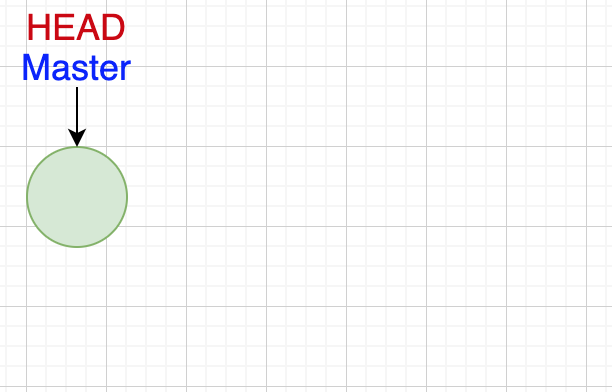
Our graph looks like this... very boring:
Branching
Sometimes, we want develope in a separate branch. This is very useful because my work is somewhat isolated and won't mess anyone up*. Take the following example of two software devs: Emrakul Eldrazi and Kozilek Eldrazi
An Overiew
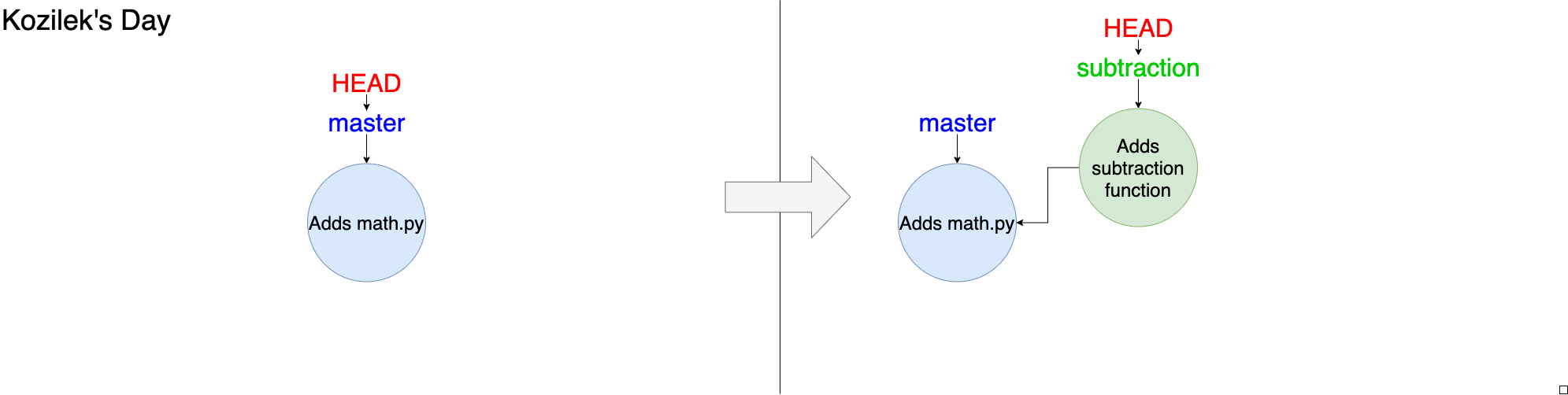
Day 1: Kozilek makes a new branch off master and pushes a commit to it
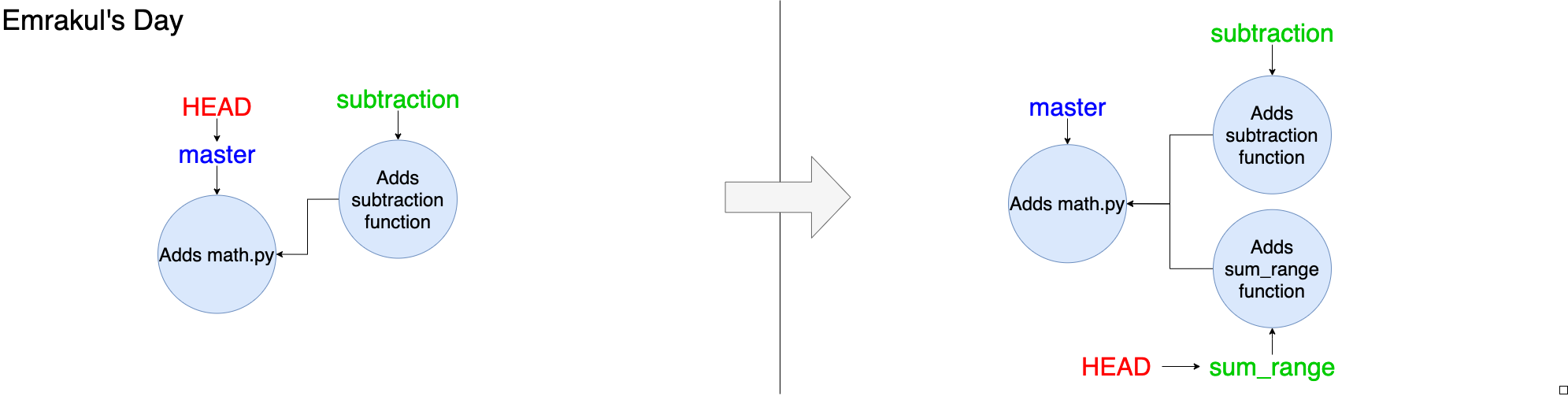
Day 2: Emrakul makes a new branch off master and pushes a commit to it
Day 3: Kozilek merges his branch into master and succeeds, then Emrakul tries to merge her branch, but fails with a merge conflict. Emrakul fixes the merge conflict and successfully merges her branch.
Day 1: Subtraction Branch
Let's say we are a Software Engineer named Kozilek. We want to create a subtraction function. This time, we'll develop on a new branch called subtraction.
git branch subtraction
git checkout subtraction
Add the following code to math.py below the rest:
def sub(x, y):
    return x - y
We can stage and commit our changes now with the message: "Adds subtraction function"
git add math.py
git commit
Now, we should be ready to merge our new changes into master! WRONG! Kozilek still has to get his changes approved by the Quality Assurance department. This sometimes takes time at his company.
Day 2: Sum-range Branch
We are now the Software Engineer Emrakul. Emrakul gets the following task:
Write a function sum_range(x, y) that take two integers $x$ and $y$ such that $x < y$. The function returns the sum of x through y inclusive: $\sum_{i=x}^y i = x + (x+1) + ... + y$
Emrakul creates a new branch of of master for her change called sum-range:
git checkout -b sum-range
Then, she adds the following code to the bottom math.py
def sum_range(x, y):
    return (y - x + 1) * (x + y) / 2
Finally, she commits with the message "adds sum_range function" her changes and patiently waits for Quality Assurance to approve them.
git commit -a
Day 3: The Merge
Quality Assurance has approved both Kozilek and Emrakul's changes. Let's merge them.
First, we can merge Kozilek's change. Let's make sure we're on the master branch first.
git checkout master
Then, we can merge Kozilek's branch into master
git merge subtraction
Wow, that was easy. We now have the subtraction function in the master branch, and git log shows the following:
Author: Kozilek Eldrazi <kozilek@g.ucla.edu>
Date:   Sat Apr 11 20:16:51 2020 -0700

    Adds subtraction function

commit aeb900e29558464ea38f4003daeae8cc797e9b70
Author: Emrakul Eldrazi <emrakul@g.ucla.edu>
Date:   Wed Apr 8 23:20:53 2020 -0700

    Adds math file
Merge Conflicts
Let's merge in Emrakul's change!
git merge sum-range
Output:
Auto-merging math.py
CONFLICT (content): Merge conflict in math.py
Automatic merge failed; fix conflicts and then commit the result.
Oops... looks like Git is having trouble merging Emrakul's changes. If we run git status we see the following:
On branch master
You have unmerged paths.
  (fix conflicts and run "git commit")
  (use "git merge --abort" to abort the merge)

Unmerged paths:
  (use "git add <file>..." to mark resolution)

	both modified:   math.py

no changes added to commit (use "git add" and/or "git commit -a")
This happens sometimes, don't let it scare you. Let's open the file math.py:
# math.py
def add(x, y):
    return x + y

<<<<<< HEAD
def sub(x, y):
    return x - y
======
def sum_range(x, y):
    return (y - x + 1) * (x + y) / 2
>>>>>> sum-range
Git is showing us which changes it's having trouble merging. The format is roughly like this:
<<<<<< HEAD
[Code on master]
======
[Code from branch]
>>>>>> branch_name
We want both functions. We can tell Git this by removing the annotations it added so the file looks like this:
# math.py
def add(x, y):
    return x + y

def sub(x, y):
    return x - y

def sum_range(x, y):
    return (y - x + 1) * (x + y) / 2
Next, we commit the fixed file.
git add math.py
git commit math.py
After, we can remove the branches that we merged (this is optional)
git branch -d subtraction
git branch -d sum-range
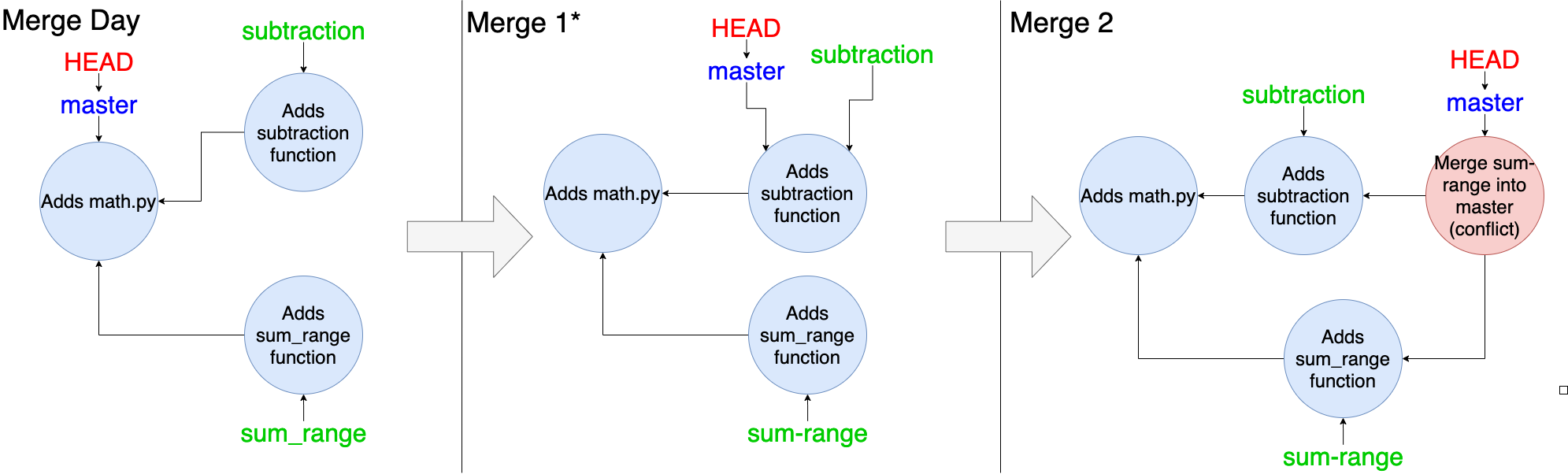
*Note: The first merge doesn't create a merge commit as usual. This is because Git did a special kind of merge called a "fast-forward".
Remote (Using Github)
Setting Up Github
Git on one computer is great and all, but this would usually all happen using an online tool like Github. You can create a Github account by going to https://github.com/ (you're probably there already) and creating an account (school or personal email).
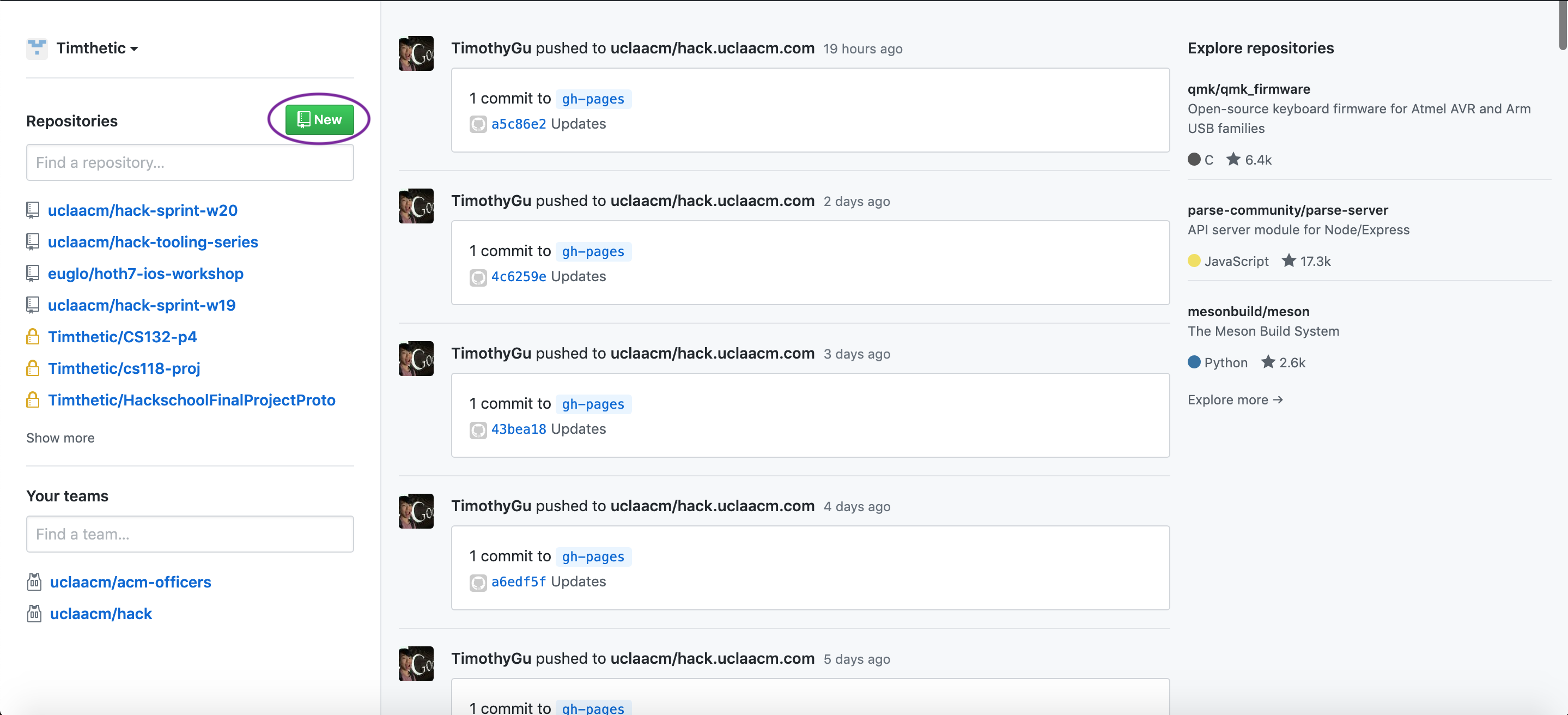
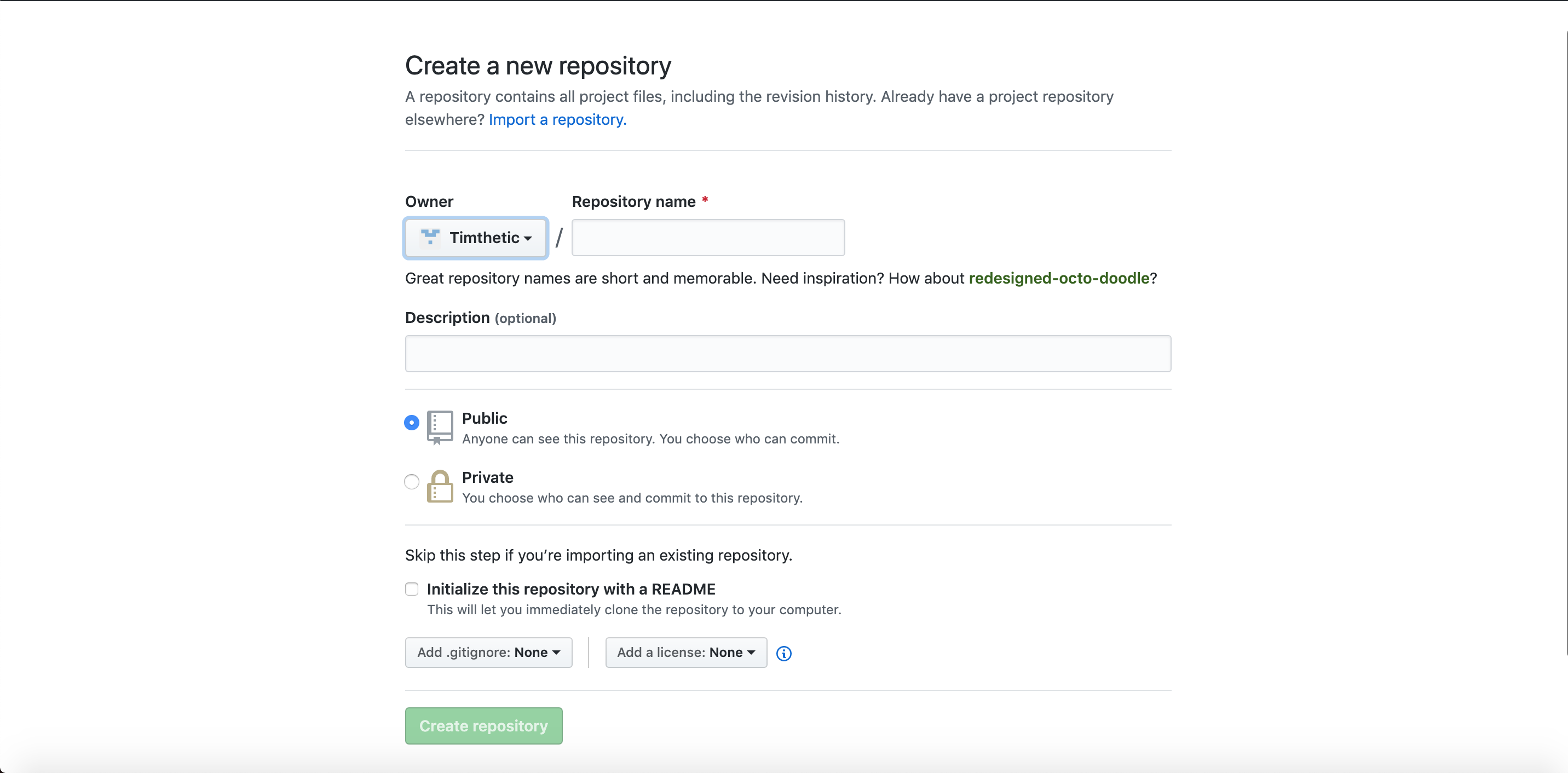
Then, get can create a new repo by clicking on the "new" button, then filling out a name and clicking "Create repository".
Setting Up Git
Now we need to tell Git you account info, so it can communicate with GitHub. Type in your command line (replace Gene Block's information with yours)
git config --global user.name “Gene Block”
git config --global user.email “geneblock@ucla.edu”
Uploading Your Code to GitHub
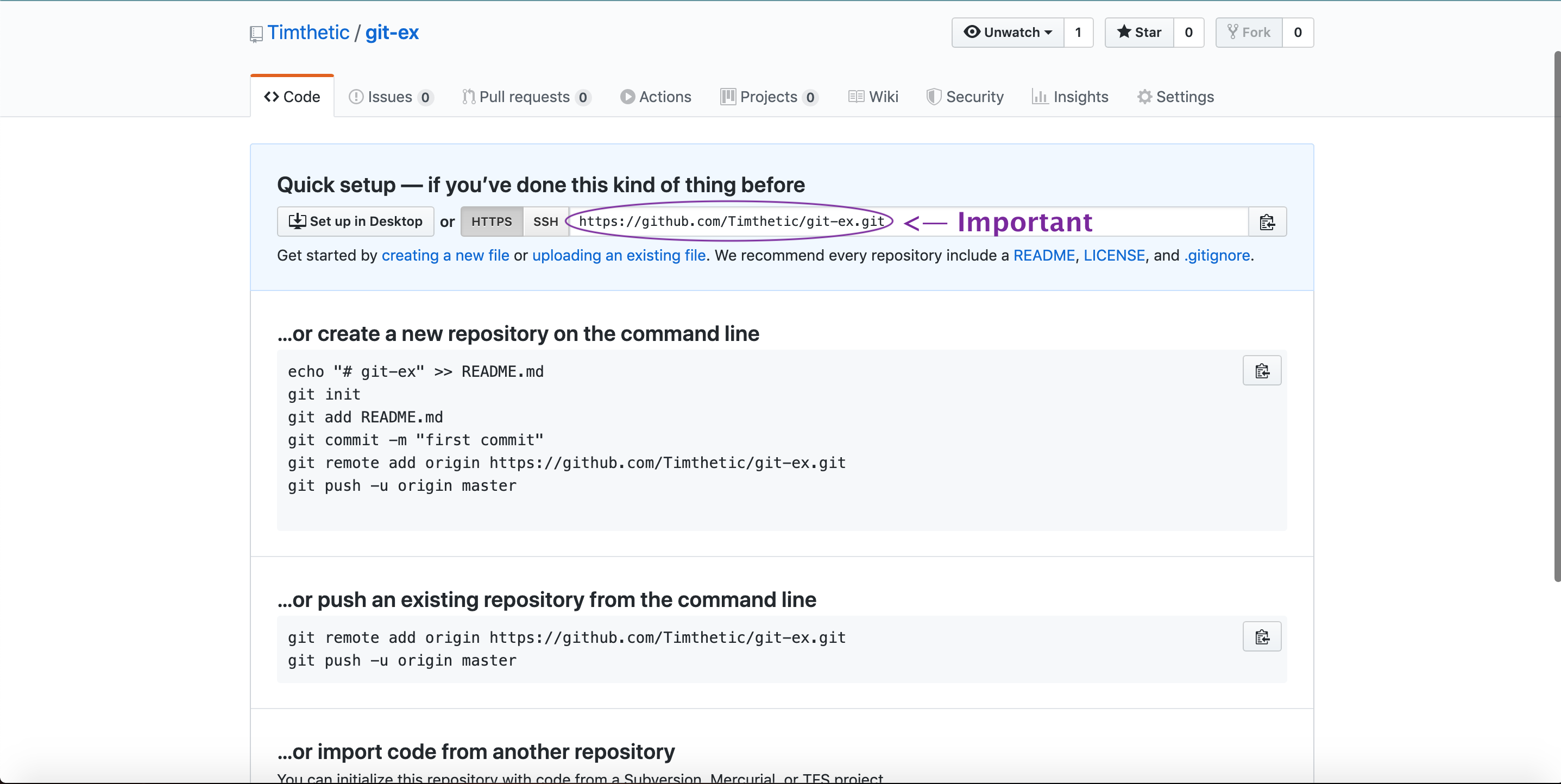
Then, git actually gives you instructions on how to upload the repository in the repository. However, let's say we didn't see that. Usually we following command to do that:
git push
Oh no! We get an error:
fatal: No configured push destination.
Either specify the URL from the command-line or configure a remote repository using

    git remote add <name> <url>

and then push using the remote name

    git push <name>
Ok, but Git tells us what to do. Let's try the first command with
- <name> is origin
- <url> is copied from the URL on Github under "Quick Setup":
git remote add origin <url>
This tells Git "Hey, this is where you should be uploading your code to"
Great! Let's try the next one :
git push origin
Oh no! Another error:
fatal: The current branch master has no upstream branch.
To push the current branch and set the remote as upstream, use

    git push --set-upstream origin master
Great, let's use that command!
git push --set-upstream origin master
This command should succeed. Git will ask you for your Github username and password so it access your repository on Github. Fill that in.
In the end, the commands you need are the two below, but you only really need to remember git push, as these two will be displayed to you on Git or GitHub.
git remote add origin <URL_FROM_GITHUB>
git push -u origin master
After that, you should see math.py on github (you may have to refresh the page). Using git with Github works just like it does locally with an extra step. We also need to keep in mind what is stored locally vs what is stored remotely. Here are some useful commands that you'll use a lot:
git fetch: retrieves data from the remote repository but doesn't change your working tree (local files).git pull: retrieves data from the remote repository and integrates those changes into your working tree (local files).git push: uploads the committed changes on your current branch to that branch on remotegit push -u origin <branch>: use this to push a new branch to remote; it uploads your changes and creates the new branch there.
That concludes the tutorial!
Bonus Information
git stash
What if you're working on a feature, and someone asks you to look at their code on another branch? You're not ready to commit, but checking out to a new branch will cause you to lose your local changes (git will actually prevent you from checking out to another branch if this is the case)! We have a command to help. You can store local changes temporarily with git stash. Once you come back to your branch, you can use git stash pop to get your changes back.
Here's an example from the documentation
# ... hack hack hack ...
$ git stash
$ edit emergency fix
$ git commit -a -m "Fix in a hurry"
$ git stash pop
# ... continue hacking ...